
Guide
How to embed a Tally form in WordPress
Two ways to put a Tally form on a WordPress site: paste Tally’s embed code into a Custom HTML block, or use a plugin that does it for you. Here’s how both work, and when each one makes sense.
Updated 26 September 2026 · 5-minute read
On this page
Before you start
You need a published Tally form (a free account at tally.so is enough) and a WordPress site where you can add blocks. On WordPress.com, Tally notes that embedding needs a plan that allows plugins.
Method 1
Tally’s embed code in a Custom HTML block
- In Tally, open your form and publish it.
- Go to Share and choose the Standard embed.
- Adjust the options, such as hiding the title, a transparent background or dynamic height, and copy the embed code.
- In the WordPress editor, add a Custom HTML block and paste the code.
- Preview the page to see the form. The editor itself only shows the code.
The catch
This works for a single form, but you can’t see the form while you edit, every change means editing HTML, popups need extra code, and page builders each need their own approach.
Method 2
The Embed for Tally plugin
Embed for Tally is a free plugin that adds a Tally Form block and a shortcode. It’s in review on WordPress.org and will be installable from the Plugins screen once it’s approved.
- Install and activate Embed for Tally.
- In Tally, open your form, go to Share and copy the share link, which looks like https://tally.so/r/abc123.
- In the WordPress editor, add the Tally Form block and paste the link. The live form appears right away.
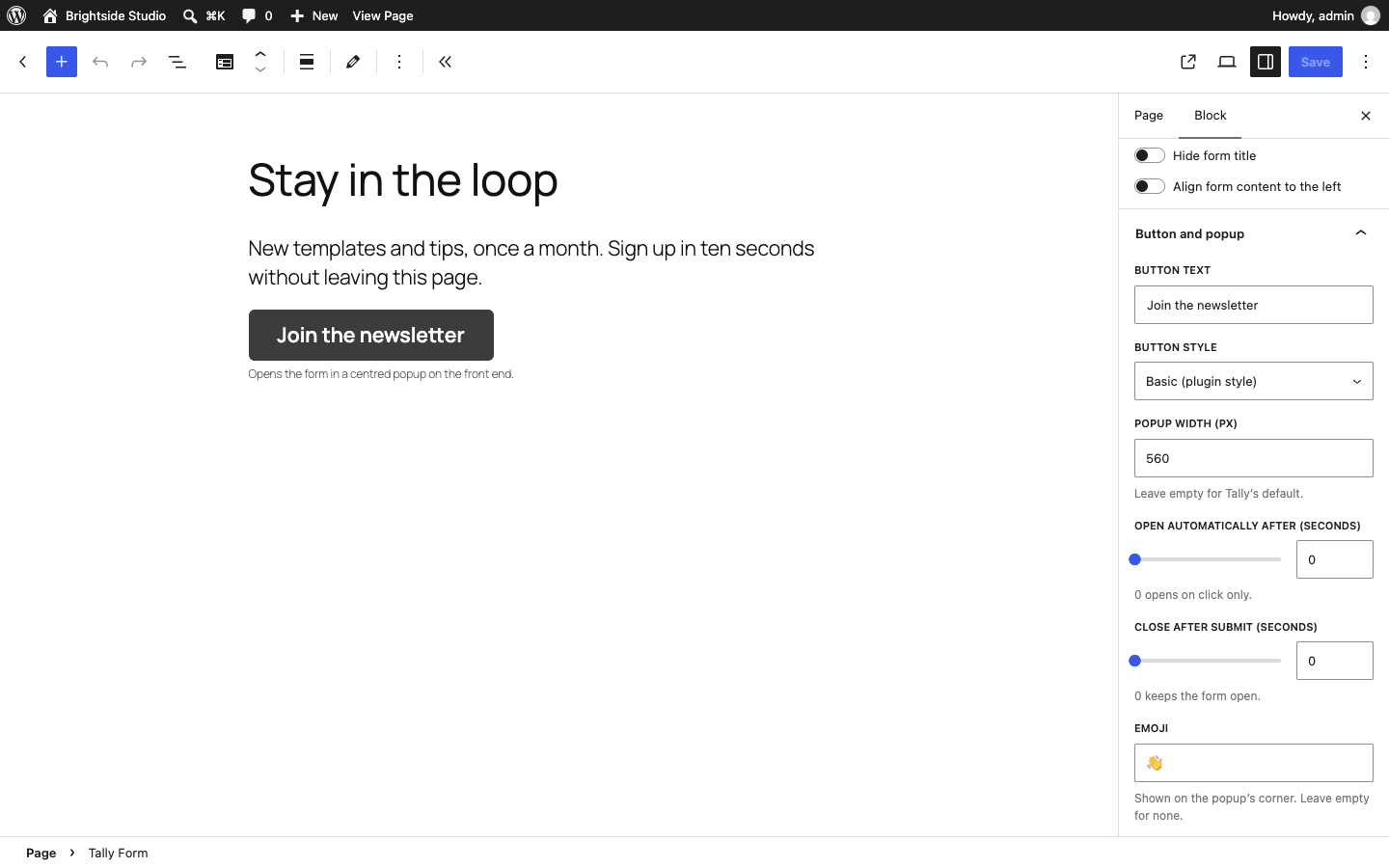
- In the block sidebar, choose inline, popup or slide-in, and set the options you need.
- Publish the page.

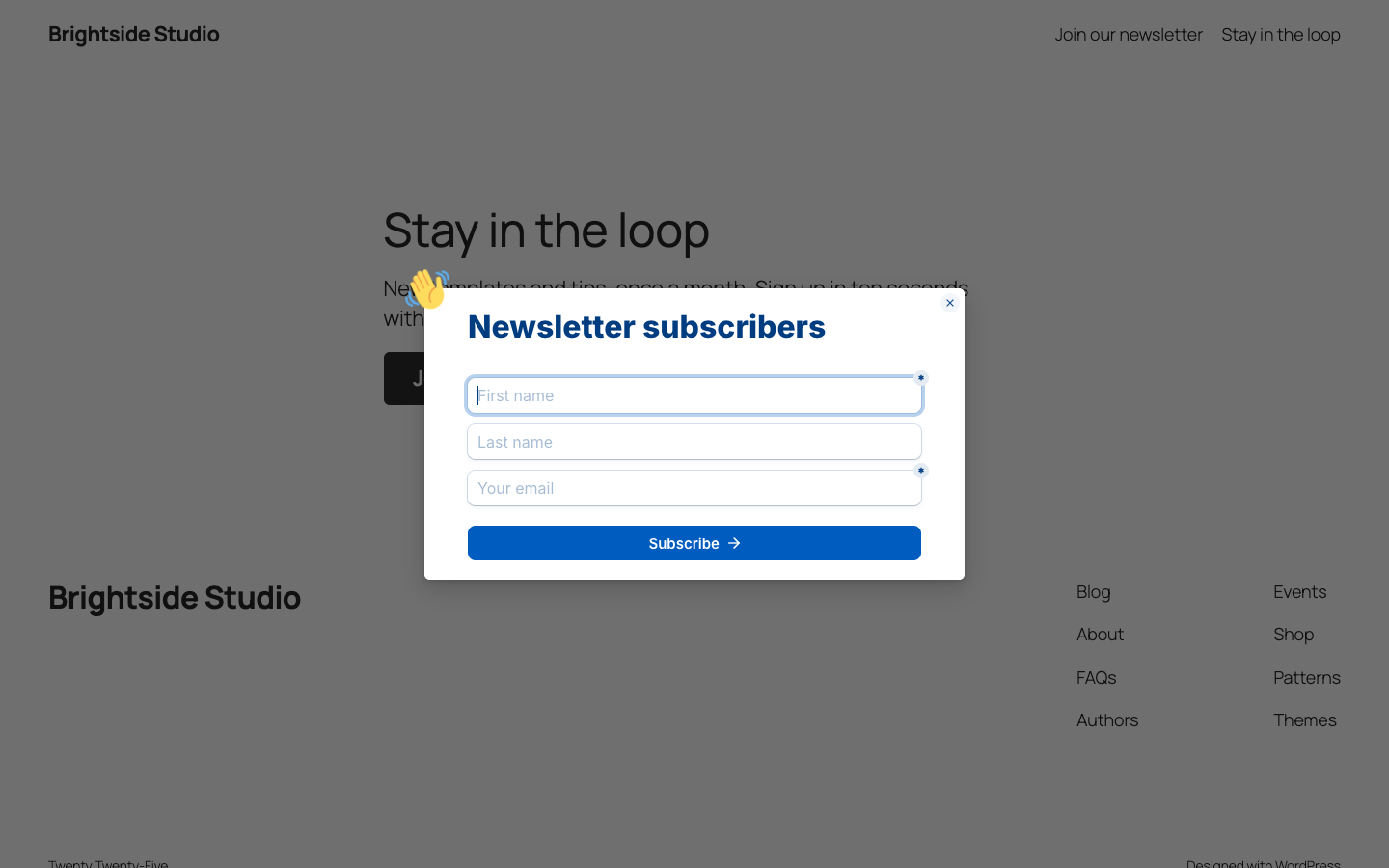
Show the form as a popup or slide-in
Set Display mode to Popup or Slide-in. The page then shows a button that opens the form, centred with a backdrop or as a card in the corner. You can change the button text and style, open it automatically after a few seconds, close it after the form is submitted, and add an emoji.
Elementor, Divi, Bricks and the classic editor
Use the shortcode in the builder’s shortcode or text element:
[tally_form id="abc123"]For a popup button:
[tally_form id="abc123" mode="popup" button_text="Contact us"]Pass hidden fields
Add hidden fields in your Tally form, then give them values in the block’s Hidden fields panel, one key=value per line, or with the shortcode’s hidden attribute, for example hidden=”source=website”. Tally also receives the page address and its query parameters automatically.
Compare
Which method should you use?
| Embed code | Embed for Tally | |
|---|---|---|
| See the form while you edit | No | Yes |
| Change options | Edit the HTML | Block sidebar |
| Popup and slide-in | Extra code | Built in |
| Page builders | Different per builder | One shortcode |
| Hidden fields | In the URL | key=value list |
| Price | Free | Free |
Use the embed code if…
- You have one form on one page
- You’re comfortable editing HTML
- You don’t need a popup
Use the plugin if…
- You want to see the form while you edit
- You want popups or slide-ins
- You build pages with Elementor, Divi or Bricks
Get Embed for Tally
It’s in review on WordPress.org. Leave your email and we’ll send one message when it’s ready to install.