
On this page
Popup or slide-in?
Tally can open a form in two layouts:
- Centred popup. The form opens in the middle of the screen with a dark backdrop behind it. Use it when you want full attention, for a contact form, a booking request or a sign-up.
- Slide-in. The form opens as a card in the bottom-right corner, and the rest of the page stays usable. Use it for lighter asks, such as a quick feedback question or a one-question survey.
Popup forms are free on every Tally plan. Try one here: the button below is the Embed for Tally block in popup mode, and the form asks one question.
Method 1
Tally’s popup code
- In Tally, open your form and publish it.
- Go to Share and choose Popup.
- Under Open, choose when the popup appears: on button click, on page load, after a number of seconds, on exit intent, or after scrolling part of the page.
- Pick the position, centre or bottom-right corner, and any options you want, such as the width, a dark overlay, an emoji, or not showing the popup again after someone submits.
- Click Get the code and copy it before you close the panel. Tally doesn’t keep your choices once the panel is closed.
If the popup opens by itself
Tally asks you to paste the code into your site’s head section. In WordPress, a header-code plugin such as WPCode, or your theme’s custom-code setting, does that for every page. To show the popup on one page only, paste the code into a Custom HTML block on that page instead.
If the popup opens from a button
Tally’s script opens a popup from any button that has a data-tally-open attribute. Add a Custom HTML block with:
<script async src="https://tally.so/widgets/embed.js"></script>
<button data-tally-open="abc123" data-tally-layout="modal" data-tally-width="500">Contact us</button>
Replace abc123 with your form ID, the part after /r/ in your share link. Leave out data-tally-layout="modal" to get a slide-in instead.
Tip: keep your theme’s button design
Tally’s script also opens a popup from an ordinary link whose address starts with #tally-open=. Add a Buttons block, set its link to #tally-open=abc123&tally-layout=modal, and put a Custom HTML block with only the script line on the same page. The button keeps your theme’s style.
The catch
You can’t see the popup while you edit, every change means new code, and a site-wide header snippet loads Tally’s script on every page, including pages with no form.
Method 2
The Embed for Tally plugin
Embed for Tally is a free plugin that adds a Tally Form block and a [tally_form] shortcode. It’s in review on WordPress.org and will be installable from the Plugins screen once it’s approved.
- Add the Tally Form block and paste your form’s share link.
- In the block sidebar, set Display mode to Popup or Slide-in.
- Under Button and popup, write the button text and choose a style: Inherit from theme matches your other buttons, and Basic uses the plugin’s own style.
- Set any of the options below, then publish.
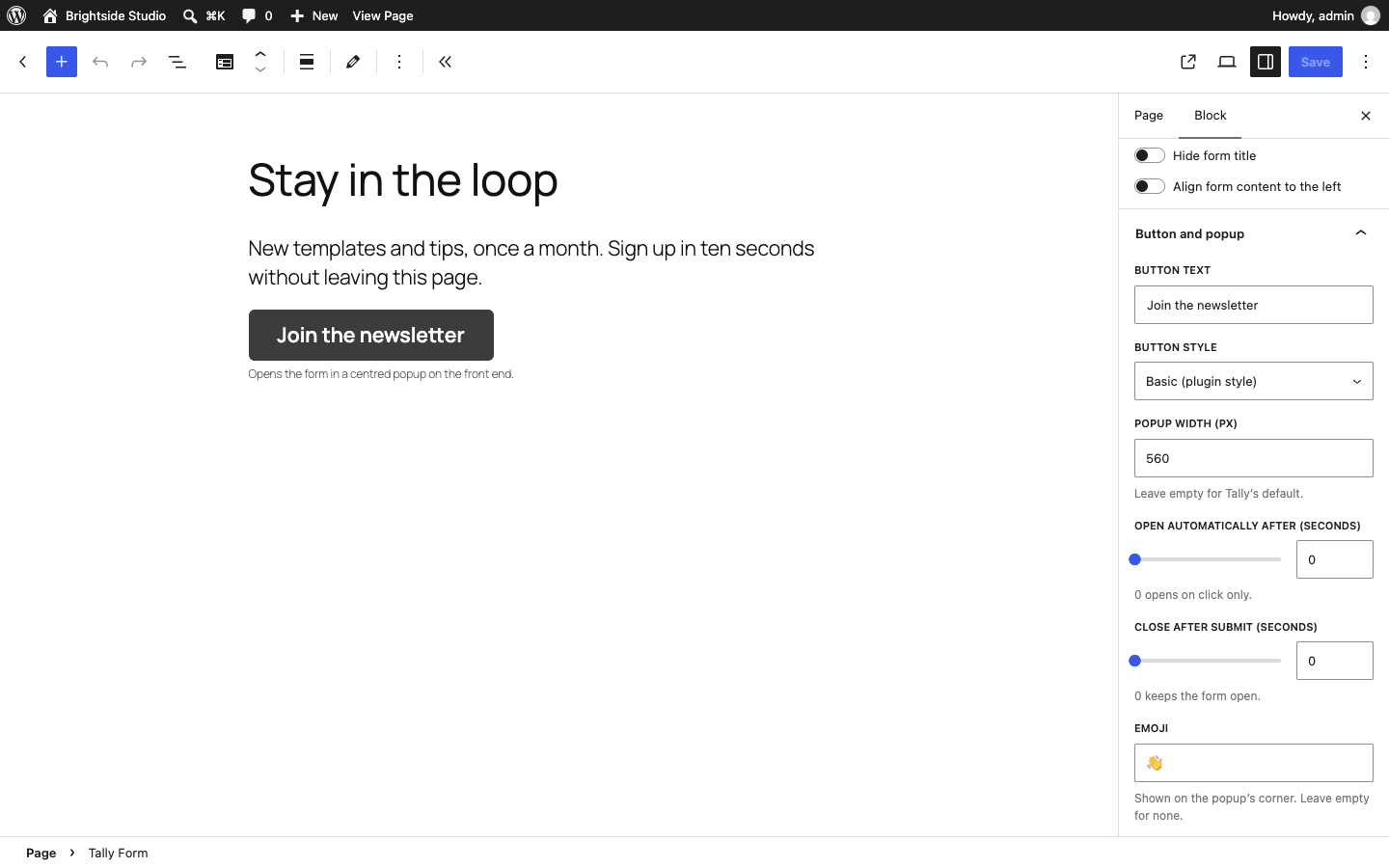
- Popup width. Leave it empty for Tally’s default.
- Open automatically after. A number of seconds, or 0 to open on click only.
- Close after submit. A number of seconds, or 0 to keep the form open so visitors can read your thank-you message.
- Emoji. Shown on the popup’s corner, with an optional animation.
- Dim the page behind the slide-in. For slide-ins only. The centred popup always has a backdrop.
Page builders and the classic editor
In Elementor, Divi, Bricks or the classic editor, use the shortcode in a shortcode or text element:
[tally_form id="abc123" mode="popup" button_text="Contact us"]A slide-in that opens after 10 seconds and closes 3 seconds after the form is sent:
[tally_form id="abc123" mode="slidein" open_delay="10" auto_close="3"]The plugin loads Tally’s script only on pages that show a form.
Good to know
The plugin opens popups on a click or after a delay. For exit intent, scroll depth, “show only once” or “don’t show after submit”, use Tally’s popup code from Method 1.
Tips for popups people don’t mind
- Let people read first. A popup that opens on page load interrupts before anyone knows what the page is about. A button, or a delay of 10 to 20 seconds, feels far less pushy.
- Keep it short. Two or three questions is plenty for a popup. Longer forms work better on their own page.
- Check it on a phone. A centred popup fills most of a small screen, and exit intent doesn’t work on mobile, so make sure the form is easy to read and close.
- Know where replies come from. Add a hidden field such as
sourceto your Tally form and give it a value on each page, for examplesource=pricing. With the plugin, use the block’s Hidden fields panel. With Tally’s code, adddata-source="pricing"to the button. Tally also fills hidden fields named after the page’s query parameters, such asutm_source, by itself.