Free WordPress plugin · Skybee Booking for Calendly
Embed Calendly in WordPress
A Calendly Booking block that shows the real calendar in the editor, an Elementor widget, and a shortcode for everything else. Show your booking page on the page, from a button, or as a floating button, without touching HTML.
Works with a free Calendly account. Not affiliated with Calendly.
Live demo
See it in action
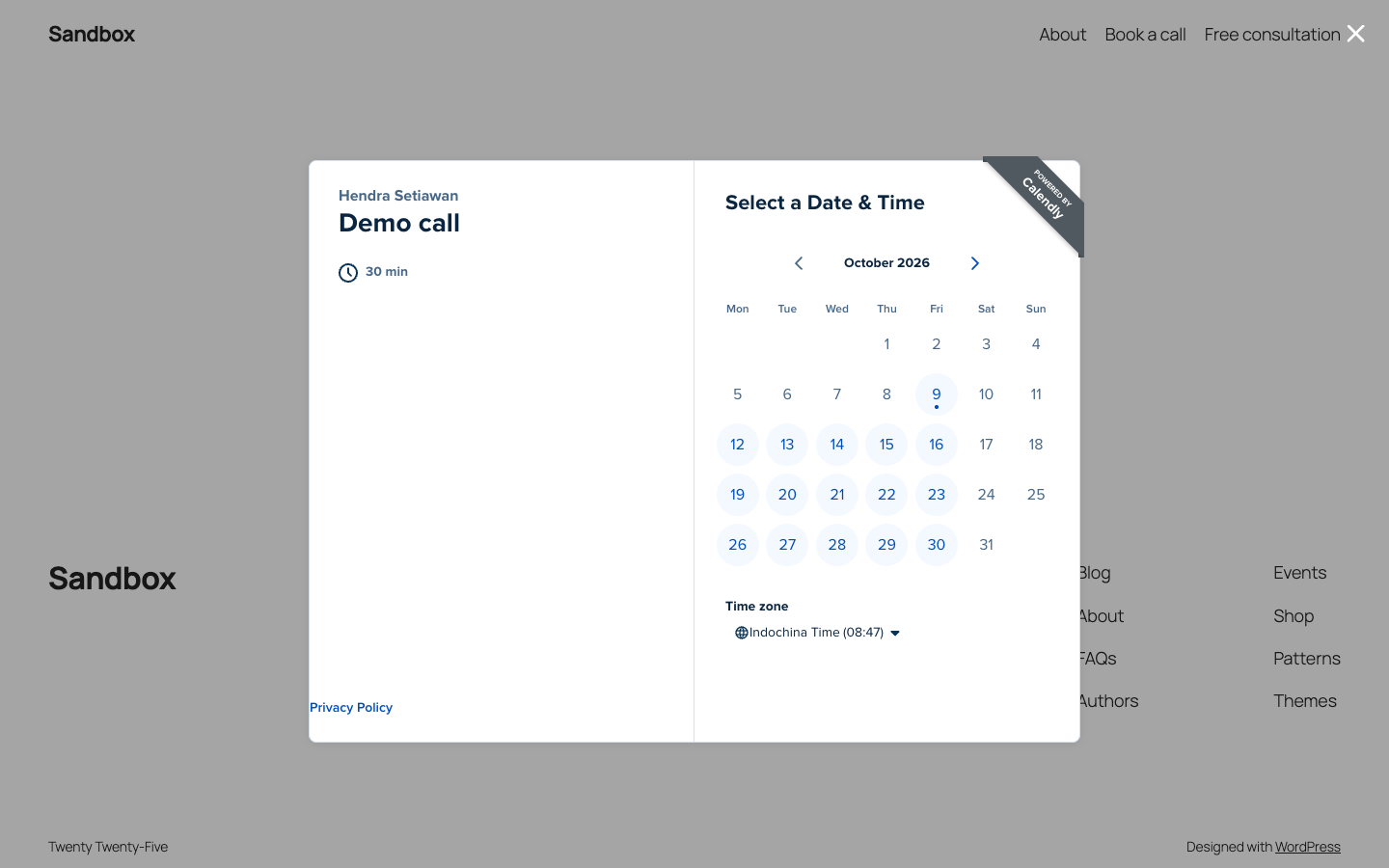
A real Calendly booking page, running on this page through the plugin. It is a demo event, so feel free to click around.
On the page
In the page
The calendar sits in your content and grows to its own height. No inner scroll bar, no fixed height.
Popup and floating button
From a button
Open the same calendar in Calendly’s popup from a button on the page, or from a floating button that stays in the corner while the visitor scrolls. The one in the bottom corner of this page is the plugin’s.
- Opens on click, after a delay, on exit, or after scrolling part of the page
- Once per visitor, and not again after they booked
- Button matches your theme, or has its own colours
Why Skybee
Everything the Custom HTML block can’t do
Calendly suggests pasting its embed code into a Custom HTML block. That works, but you never see the calendar while you edit.
Live preview
See the real booking calendar in the editor while you write the page, at its own height.
Options, not code
Hide your name and photo, the event details or the cookie banner. Set width, position and colours from the block sidebar.
Popup and floating button
Three pictures to choose from. A popup can open after a delay, on exit or on scroll, once per visitor.
Elementor and page builders
An Elementor widget with the same options, and the [calendly_booking] shortcode for Divi, Bricks, widgets or the classic editor.
After a booking
Send visitors to your own thank-you page, and report each booking to the analytics tags already on your site.
Light on your site
Calendly’s script loads only on pages that show a booking page, or only after a click if you prefer.
How it works
Three steps
1
Copy your Calendly link
In Calendly, open the event and choose Share → Copy link. Your profile link works too.
2
Add the Calendly Booking block
Paste the link into the block. The live calendar appears right away.
3
Pick how to show it
Choose the calendar on the page, a popup button or a floating button in the sidebar, and publish.
FAQ
Questions
Is this an official Calendly plugin?
No. Skybee Booking for Calendly is an independent plugin by Hendra Setiawan. It is not affiliated with or endorsed by Calendly, and “Calendly” is a trademark of Calendly LLC.
Do I need a Calendly account?
Yes. You set up your events at calendly.com, and a free account is enough. Custom colours for the booking page and removing Calendly’s own branding depend on your Calendly plan, not on the plugin.
Does it work with Elementor, Divi or Bricks?
Yes. Elementor gets a Calendly Booking widget with the same options as the block. In Divi, Bricks, other builders, widgets and the classic editor, use the [calendly_booking url="..."] shortcode.
Where do bookings go?
To your Calendly account and your connected calendar, like any Calendly booking. The plugin only shows the booking page; it never sees who booked.
Is it free?
Yes, the plugin is free.
Where can I get it?
It’s free on WordPress.org. In your dashboard, go to Plugins → Add Plugin, search for Skybee Booking for Calendly, then install and activate it.
Try it on your site
Free on WordPress.org. Works with a free Calendly account.