Guide
How to add Calendly to WordPress
Two ways to put your Calendly booking page on a WordPress site: paste Calendly’s embed code into a Custom HTML block, or use a plugin that shows the calendar in the editor and handles popups, buttons and page builders for you. Here’s how both work, and when each one makes sense.
Updated 9 October 2026 · 6-minute read
On this page
Before you start
You need a Calendly account with at least one event type, for example a 30-minute call. A free Calendly account is enough. Every event has a link like https://calendly.com/your-name/30min, and your profile has one like https://calendly.com/your-name that lists all your events. Both work on a WordPress site; in Calendly, open the event and choose Share → Copy link to get it.
Two things depend on your Calendly plan, not on WordPress: custom colours for the booking page apply on Calendly’s paid plans, and the “powered by Calendly” branding inside the booking page can only be removed there. Everything below works on any plan.
Method 1
Calendly’s embed code in a Custom HTML block
- In Calendly, open the event and choose Share → Add to website.
- Pick Inline embed (the calendar on the page), Popup widget (a floating button) or Popup text (a link that opens the calendar), set the options Calendly offers, and copy the code.
- In the WordPress editor, add a Custom HTML block and paste the code.
- Publish and check the page on the front end. The editor shows the code, not the calendar.
The catch
This works, and it needs no plugin. But you can’t see the calendar while you edit, every change means copying new code from Calendly, the embed code contains a script tag that WordPress strips for authors, contributors and most multisite users, and page builders each need their own approach. The inline calendar also keeps a fixed height unless you pick Calendly’s auto-size option, and that option is meant for one calendar per page.
Method 2
The Skybee Booking for Calendly plugin
Skybee Booking for Calendly is a free plugin that adds a Calendly Booking block to the editor, a Calendly Booking widget to Elementor, and a shortcode for everything else. You paste your Calendly link, the real calendar appears in the editor, and you pick how to show it with three pictures. No API key, nothing to connect.
- Install and activate Skybee Booking for Calendly. In your dashboard, go to Plugins → Add Plugin and search for “Skybee Booking for Calendly”.
- A Get started page opens. Paste your Calendly link there if you like: every new block and widget then starts with it. You can also skip this step.
- In the WordPress editor, add the Calendly Booking block (type “calendly” in the block search) and paste the link, or create a page with the block in one click from the Get started page.
- Click Show booking page. The calendar appears in the editor, at its own height.
- In the block sidebar, pick On the page, Button that opens a popup or Floating button, adjust the options you care about, and publish.
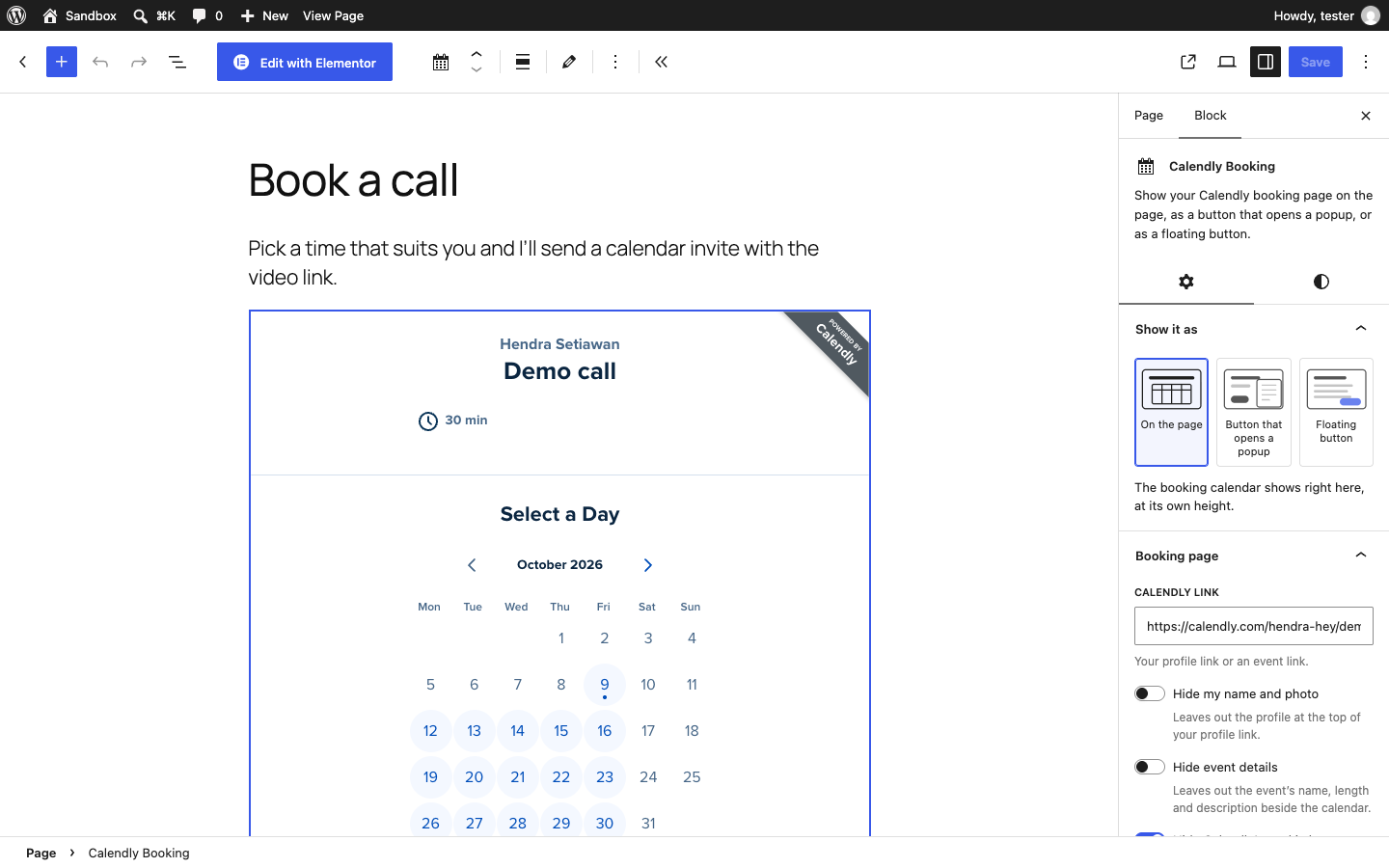
The options are in plain words: hide your name and photo, hide the event details, hide Calendly’s cookie banner, width and position, button text and style. Visitors who are logged in to your site get their name and email filled in on the booking form. On the page, the calendar grows to its own height, with no inner scroll bar, and several calendars on one page each keep their own.
Show it as a popup or a floating button
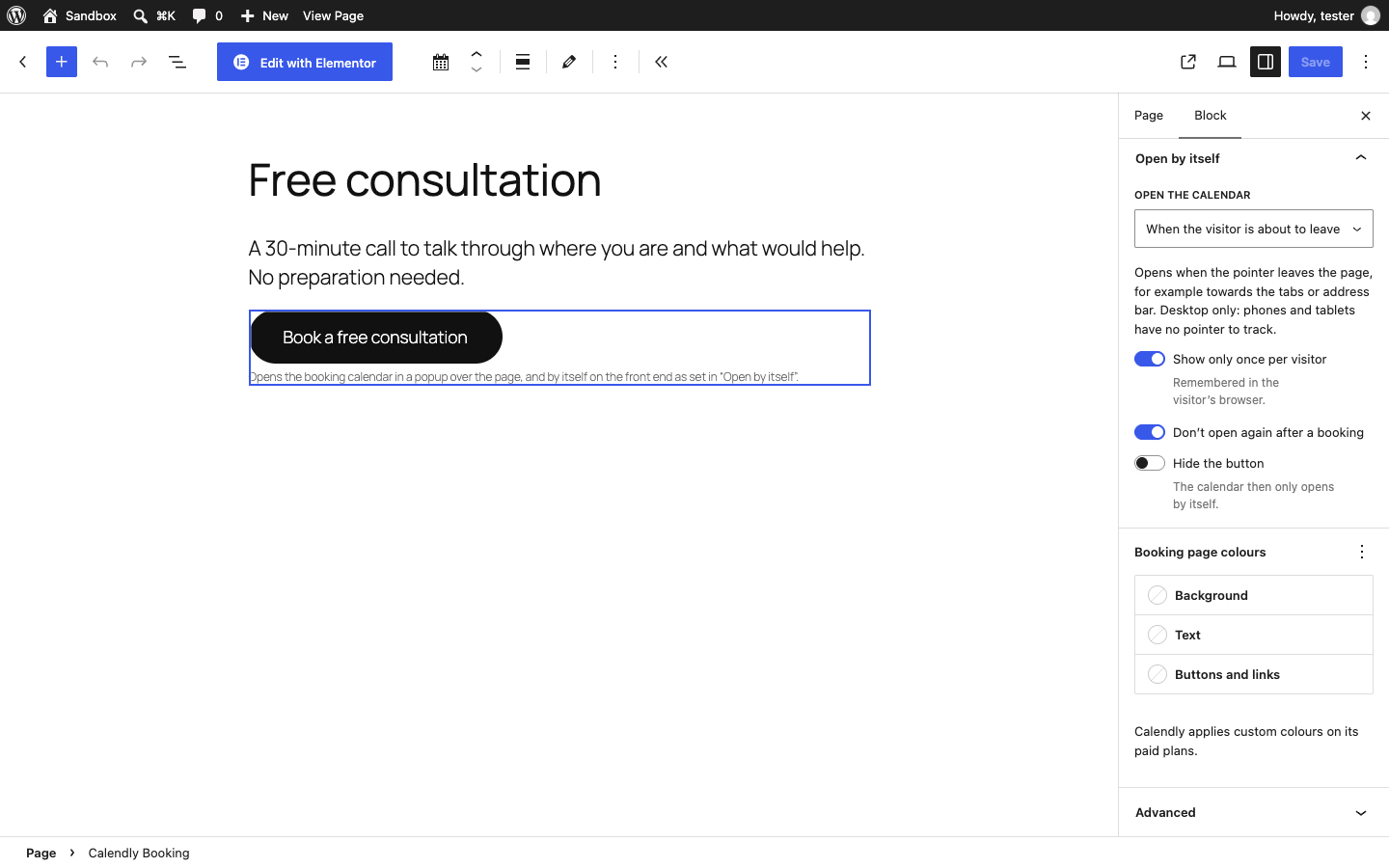
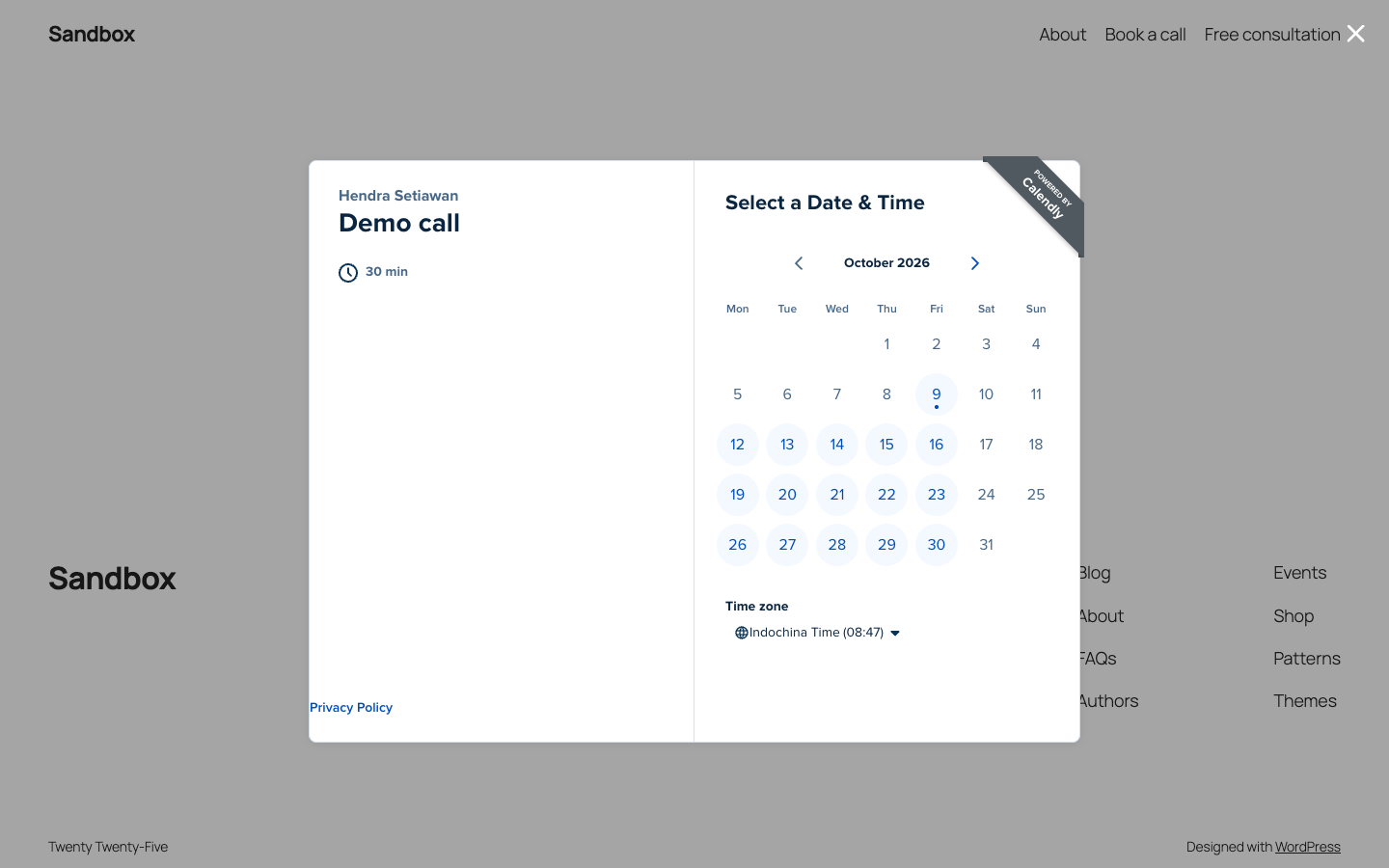
Pick Button that opens a popup for a button on the page that opens the calendar over it, or Floating button for one that stays in the bottom corner while the visitor scrolls, like Calendly’s own badge. The popup button can match your theme’s buttons or use a simple dark style; the floating button has its own colours. Under Open by itself, a popup can also open after a delay, when the visitor is about to leave, or after scrolling part of the page, once per visitor and not again after they booked.
Elementor, Divi, Bricks and the classic editor
In Elementor, add the Calendly Booking widget; it has the same options as the block, shows the live calendar in Elementor’s editor, and adds a Style tab for the buttons. In Divi, Bricks and other builders, and in the classic editor and widgets, use the shortcode instead:
[calendly_booking url="https://calendly.com/your-name/30min"]For a popup button, add mode="popup"; for a floating button, mode="floating". You don’t need to learn the rest: Calendly → Shortcode in your dashboard writes the shortcode from the options you choose.
After a booking
Under Calendly → Advanced you can send visitors to a thank-you page of your own after they book, and report each booking to the Google Analytics, Google Tag Manager or Meta Pixel tags already on your site. If visitors reach your site through a campaign link, the plugin can keep the campaign tags for the visit so a booking on a later page still shows the campaign in Calendly. And if you want nothing loaded from Calendly until the visitor agrees, turn on Load the booking page on click. All of this is off until you switch it on.
Compare
Which method should you use?
| Embed code | Skybee Booking for Calendly | |
|---|---|---|
| See the calendar while you edit | No | Yes |
| Change options | Copy new code from Calendly | Block sidebar, in plain words |
| Popup and floating button | Separate code for each | Three pictures, one block |
| Calendar height on the page | Fixed, or one auto-size calendar per page | Follows the calendar, any number per page |
| Elementor, Divi, Bricks, classic editor | Depends on the builder | Widget and shortcode |
| Works for authors and contributors | No (scripts are stripped) | Yes |
| Thank-you page, booking tracking | Custom code | Switches under Advanced |
| Load Calendly only on click | Custom code | One switch |
| Needs a plugin | No | Yes, free |
Use the embed code if…
- You have one calendar on one page
- You’re comfortable editing HTML and are an administrator
- You don’t want to add a plugin
Use the plugin if…
- You want to see the calendar while you edit
- You want a popup or a floating button without touching code
- You use Elementor, Divi, Bricks or the classic editor
- You want a thank-you page, booking tracking or a load-on-click option
Get Skybee Booking for Calendly
Free on WordPress.org. In your dashboard, go to Plugins → Add Plugin and search for “Skybee Booking for Calendly”. Not made by or affiliated with Calendly.